


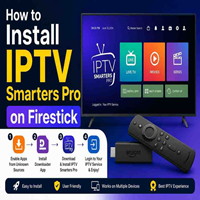

How to Install IPTV on Firestick (2026 Complete Beginner’s Guide)
If you’re looking for the easiest way to install IPTV on Firestick, you’re in the right place. Firestick is one of the most popular streaming devices because it’s affordable, easy to use, and supports a wide range of IPTV applications.
In this step-by-step guide, you’ll learn how to install IPTV on Firestick safely and start streaming your favorite live TV channels, movies, sports, and entertainment within minutes.
Why Use IPTV on Firestick?
Firestick and IPTV make a perfect combination for home entertainment. Once your IPTV service is set up, you can enjoy thousands of live TV channels and on-demand content from one convenient device.
Benefits of IPTV on Firestick
- Easy installation process
- Smooth HD and 4K streaming
- Access to live TV and video on demand
- User-friendly interface
- Portable and affordable streaming solution
What You Need Before Installing IPTV
Before you begin, make sure you have:
- An Amazon Firestick connected to your TV
- A stable internet connection
- An active IPTV subscription
- IPTV login details (M3U URL or Xtream Codes API)
- An IPTV Player app
Step 1: Enable Apps from Unknown Sources
Since many IPTV players are not available directly from the Amazon App Store, you’ll first need to enable app installation.
- Open Settings
- Go to My Fire TV
- Select Developer Options
- Enable Install Unknown Apps
- Allow permission for the Downloader app (if prompted)
Step 2: Install the Downloader App
The Downloader app allows you to download IPTV player applications.
- Open the Amazon App Store.
- Search for Downloader.
- Install the application.
- Open Downloader after installation.
Step 3: Download an IPTV Player
Several IPTV players work perfectly with Firestick.
Popular IPTV players include:
- IPTV Smarter Pro
- Tivi Mate
- XCIPTV Player
- Flix IPTV
- Sparkle TV
Using Downloader, enter the download link provided by your IPTV provider and install the player.
Step 4: Install the IPTV App
After downloading:
- Click Install
- Wait for installation to finish
- Open the IPTV application
Step 5: Add Your IPTV Subscription
Most IPTV apps allow two login methods.
Option 1: Xtream Codes Login
Enter:
- Server URL
- Username
- Password
Option 2: M3U Playlist
Paste your M3U Playlist URL into the IPTV app.
After saving the information, the app will automatically load your channels and content.
Enjoy IPTV on Firestick
Once everything is configured, you can browse:
- Live TV
- Sports
- Movies
- TV Series
- Kids Channels
- International Content
Navigation is smooth using the Firestick remote.
Tips for Better Streaming
For the best IPTV experience on Firestick:
- Use a high-speed internet connection (25 Mbps or faster)
- Keep your IPTV app updated
- Restart Firestick regularly
- Clear app cache occasionally
- Use a reliable IPTV provider for stable streaming
Common IPTV Problems and Solutions
Buffering
- Restart your router.
- Check your internet speed.
- Close background apps.
Login Error
- Double-check your username and password.
- Verify your subscription is active.
Channels Not Loading
- Refresh your playlist.
- Restart the IPTV app.
- Contact your IPTV provider if the issue continues.
Why Choose Eagle IPTV?
At Eagle IPTV, we focus on providing a reliable streaming experience with high-quality channels, fast servers, and responsive customer support. Whether you’re watching live sports, movies, or international TV, our service is designed for smooth performance on Firestick and other compatible devices.
Final Thoughts
Learning how to install IPTV on Firestick is simple when you follow the right steps. With the proper IPTV player, a stable internet connection, and an active IPTV subscription, you can enjoy thousands of live channels and on-demand content from the comfort of your home.
If you’re searching for an easy and reliable IPTV setup, Firestick remains one of the best streaming devices available today.
Frequently Asked Questions (FAQ)
Can I install IPTV on any Firestick model?
Yes. IPTV works on Firestick Lite, Firestick HD, Firestick 4K, Firestick 4K Max, and Fire TV Cube.
Which IPTV player is best for Firestick?
Popular options include IPTV Smarters Pro, TiviMate, XCIPTV, and Sparkle TV.
Do I need an IPTV subscription?
Yes. An IPTV player only plays content. You’ll need an active IPTV subscription to access live TV and on-demand content.
Is Firestick good for IPTV?
Yes. Firestick offers excellent performance, easy navigation, and supports many IPTV applications, making it one of the best devices for IPTV streaming.
SEO Meta Title
How to Install IPTV on Firestick (2026 Easy Step-by-Step Guide)
SEO Meta Description
Learn how to install IPTV on Firestick with this beginner-friendly step-by-step guide. Set up IPTV quickly, add your playlist, and start streaming live TV, movies, and sports.
Focus Keyword
How to Install IPTV on Firestick
Related Keywords
- Install IPTV on Firestick
- IPTV Firestick Setup
- IPTV on Amazon Firestick
- Firestick IPTV Guide
- Best IPTV for Firestick
- IPTV Smarter Firestick
- Firestick Streaming Guide